‏إظهار الرسائل ذات التسميات Android. إظهار كافة الرسائل

الأربعاء، 16 يونيو 2021

10 Best Free Pushbullet Alternatives for: Android, IOS, Mac and PC

10 Best free pushbullet alternatives for: Android, IOS, Mac and PC

Do you want to use pushbullet for free? Unfortunately, you can't do it, But you can use some of the best free pushbullet alternatives which provide all features of pushbullet that you get in Paid Version. Even most of them are better.

Below is the list of best alternatives, you can choose according to your ease.

10 Best free pushbullet alternatives


Content:↴
  1. MightyText
  2. AirDroid (Best for android in the List)
  3. Crono
  4. Your Phone
  5. Snap Drop Best for sharing files ( IOS, Mac)
  6. Yappy
  7. Pushline
  8. KDE Connect pushbullet alternative for Linux
  9. EasyJoin

1. AirDroid 

It allows you to make calls, Transfering files, check notifications, replies messages, and Call Logs. But the unique feature is a mirror screen through which you can share the screen of your mobile screen.

It is the best pushbullet alternative for iOS, also available on multiple platforms.

Availability – Andriod, Windows, IOS, Mac

2. Mighty Text

It is one of the best push bullet alternatives for android, through which you can do all the tasks from your PC to a smartphone-like SMS, Making phone and Video calls, uninstalling the app, displaying all phone notifications, scheduling messages, and much more.

Pro Version is also available, but their free version is enough. You can send 500 text messages a month.

If you are an android and Windows user and searching for an alternative, then you should definitely use it.

3. Crono

This one is the best pushbullet alternative for android, If you are only looking for a Notification mirror, then Crono provides a better experience even better than Mighty Text. 

You can get all the notifications from your smartphone to your PC with a better dashboard Experience.

It is specially built for a Notification mirror you can reply to WhatsApp messages, Instagram, and all SMS Systems and the best thing about it is you can share the clipboard of your Phone with your Computer.

You will get 24,00 notifications with their FREE Plan and Push bullet, providing 100 notifications only so that Crono will be a good replacement for Push bullet.

Availability– Android, Linux, and Mac

4. Your Phone

It is the brand new software for Windows built by Microsoft through which you can control messages, Microsoft edge, skype and view gallery photos. Just install the software on windows and Mobile.

Availability – Windows

5. Snap Drop 

If you want to share big files easily and fast, you can try snap drop, No need to install any app. Just create an account. Connect both Pc and Mobile with the same wifi network, Open Snap drop, and start sharing files.

You can share multiple files in one go quickly and fast if you are looking for a file-sharing app, so It is the best on the List.

Availability – Chrome, Windows, Firefox, IOS, Linux

6. Yappy 

It is also a good alternative to pushbullet, which allows you to send messages, Pick up calls. Yappy is best for their notification, but there is no limit like Crono you can send unlimited messages from your Computer. Use it if you get too many messages and notifications.

7. Pushline

Pushline works similarly to pushbullet. You can pick up calls, send messages, and more. Just install an app on the phone and download the extension on Pc and start mirroring your work.

Send me anywhere. It allows You to send messages, but you can share heavy and multiple files from your smartphone to your PC.

And It’s an excellent Pushbullet alternative for IOS because it is available on every platform like Andriod, IOS, Mac, and Windows

8. KDE Connect

Push bullet is not completable for Linux, which is bad news for Linux users, but KDE Connect It’s the best Free alternative to pushbullet for Linux.

You can easily connect with youPhonene and do multiple tasks like sharing files, accessing notifications, see phone calls, reply messages and media playback, etc.

KDE Connect is a very Powerful app for Linux. You should need to try it

Availability – Linux

9. EasyJoin

If app design does not matter for you, you need to try. It provides more features than PushBullet like reply messages, marks read and snooze, voice calls, transfers files, setting alarms, and clipboard.

And some more features for totally free. Some apps will not provide it even in their paid plan. You will get all these features for free.

Availability – Android, window, mac, and Linux

10. Bridge 

It is different from all the Lists you can't share files, or pick calls from it. It has a Notification portal if you have multiple devices then you can connect all of them.

It will store notifications of all devices and you can respond to them also.

Some Popular Questions asked by People


1. Is there any Better app than Pushbullet?

Yes, Airdroid is a better option than Pushbullet, It allows you to make calls, Transfer files, check notifications, replies messages, and Call Logs. But the unique feature is a mirror screen through which you can share the screen of your mobile screen.

2. Pushbullet alternative for ios

You can try Airdroid It’s the best option for ios. It provides features like Calls, Replies Messages, File Transfer, and more for FREE

3. Is Pushbullet free?

No, it only provides some limited features in the Free plan then you need to upgrade it for Five Dollars per month.

4. Does pushbullet work with iPhone

Yes It also works on iPhone and iPad which can easily do all tasks

5. Pushbullet alternative for pc

Your Phone is newly developed by Microsoft only for pc which you can easily connect with Microsoft account

Final Thoughts

These are the best alternatives of pushbllet that you should try at once, And if you know any other best alternative of it then please let us know in the comment section we will definitely add it later.

الاثنين، 14 يونيو 2021

How To Know if Someone Unadded or Blocked You On Snapchat!

How to Know if someone Blocked you on Snapchat

If you are using Snapchat and one day you see that you are not able to send a message to your friend. If yes, then the chances are they have blocked or unadded you on Snapchat. 

You will not receive any message or notification from Snapchat, So there is a way to find out if someone blocked you on Snapchat or not.


How to Know if someone Blocked you on Snapchat


You can follow these ways for converting doubt into faith

Send them an image; if it's show grey, then you are deleted 

  1. Send a Snap
  2. Check Snapchat score 
  3. Find in your Friends List 

1. Send a Snap

First, take a Snap and share it with that friend, and then see if the red line showing on the left side of the image, means the image is sent, but if you see a message in grey color that says (your snaps and chats are pending until "user" adds you as a friend), that means your message is not sent, that user friend has deleted you from Snapchat

* Before Unfriend

How to Know if someone Blocked you on Snapchat
* After Unfriend 

How to Know if someone Blocked you on Snapchat

2. Find in your Friends List 

You can also know by finding them in your friends' list if you send him/her a message, then it's obvious that [s]he is in your friend list. Go to the Search box and search your friend's name. If it's not popping out, then you are unfriended from Snapchat.

* Before Deleted 

How to Know if someone Blocked you on Snapchat

* After deleted 

How to Know if someone Blocked you on Snapchat


3. Check Snapchat Score 

You can check the snap score if someone has removed you as a friend. Go to a friend's Profile, and just below their name, you can see a snap score that tells you how many snaps you have received.

How to Know if someone Blocked you on Snapchat

If you cannot see it, then it's a direct sign that you are unfriended from Snapchat. 

Last Words 

If all ways are working, your doubt is right that your friend has deleted you from Snapchat. So just a goodby to that friend. 


F&Q


1. what's the difference between unfriend and block on Snapchat

You will not be able to send messages only if the person unfriends you from Snapchat, and you can't see public posts or stories if you are blocked. That's the main difference between unfriend and block. 

2. should I remove friend or block on Snapchat

If you don't want a message and they can see your Public Post, then Remove it or if you want to remove it from everywhere, then Block them.

3. how to remove and block someone on Snapchat

  1. Go to Snapchat and open a friend list
  2. Search which friend you want to block or delete
  3. Hold their Profile, and a popup will come
  4. Select block or remove a friend 

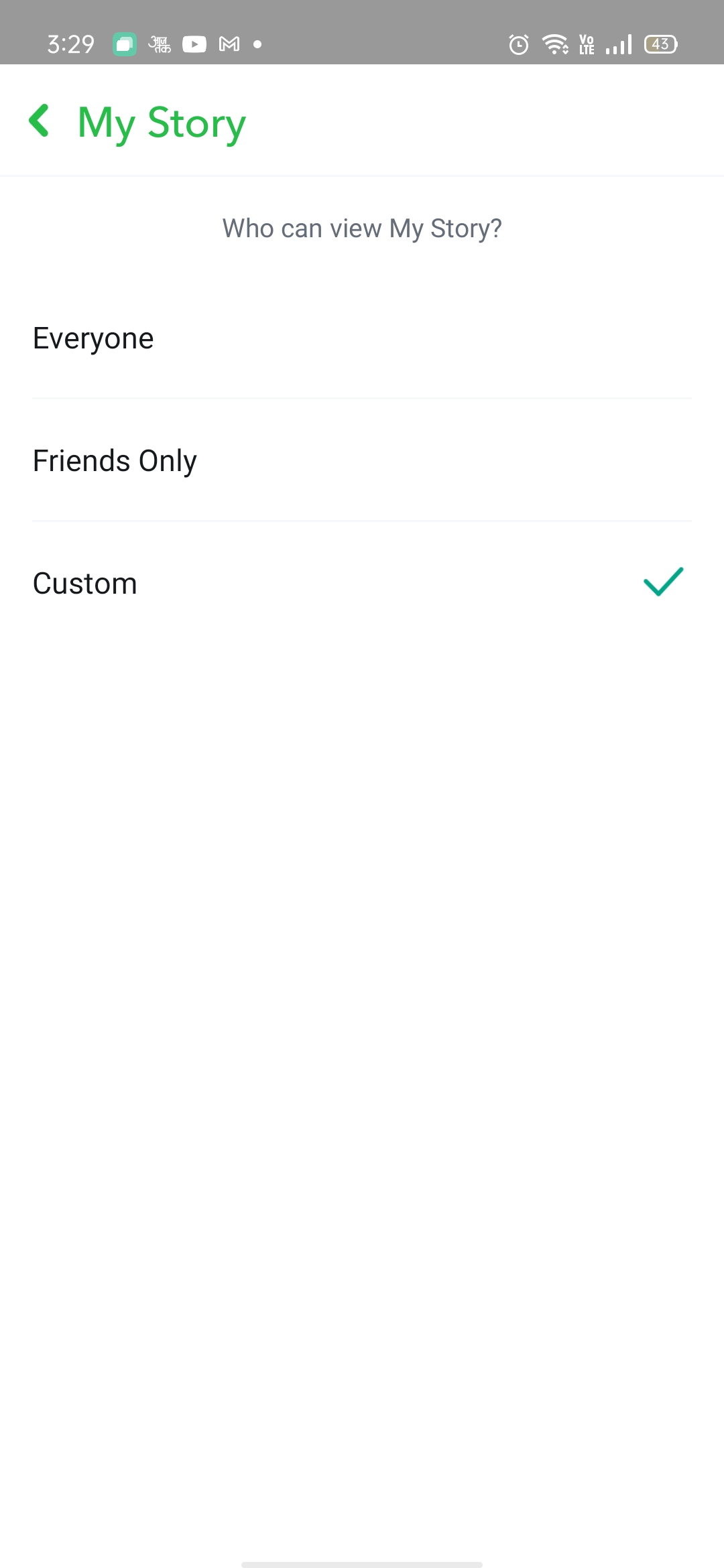
4. how to stop someone from seeing your Snapchat story without blocking them

-> Open Snapchat and click on your Profile

How to Know if someone Blocked you on Snapchat

-> Select setting Icon and scroll to who can view my Story

How to Know if someone Blocked you on Snapchat
-> Click customs
How to Know if someone Blocked you on Snapchat

-> Select people and remove them from seeing your Story 

How to Know if someone Blocked you on Snapchat

5. How to know if someone deleted you from your Snapchat story?

Make a Fake account, and then check your friend's story. If it is seeing on a fake account but not in your account, that means your friend blocked you from the Snapchat story. 

Final Thoughts

So these are the easy three ways to know if someone unfriended you on Snapchat or not, If you have any problem regarding this article then please let us know in the comment section, we will try to help you as soon as possible.

You Might Like These:↴

الأربعاء، 9 يونيو 2021

How to Remove Ads on Hulu & Hulu Live TV - Enjoy without seeing ads

How to remove ads on Hulu on Live TV

No one loves watching the ads while watching his or her favorite series online. The popularity of streaming is because of the full control it has provided to its users on the go.

Of course, we hate ads during the live streaming, But today we'll show you, How to remove Ads on Hulu on Live TV? What is Hulu's non-commercial plan?

Read Also: Best Equalizer For Windows 10

I know it's annoying.

But, don’t worry, we are here to provide you with a solution to your problem. A way to watch Hulu with no commercial.

Hulu has relied upon ads just to provide its users the low-cost services, unlike Netflix and amazon they are ad-free but with a high subscription cost. Therefore, Hulu decided something different to provide the same series cost-effectively, it only requires a few extra clicks, to go ad-free.


How To Remove Ads On Hulu


The easiest way to remove ads is to upgrade them to the premium plan. Hulu comes with the following two plans:

Standard subscription, which cost $5.99 per month

Premium subscription, stands for $11.99 per month

Steps to upgrade the plan is :

  1. Login into your account
  2. Click on manage your account

Here you can upgrade your subscription and can add any add-ons if you want OR even can cancel your Hulu account.


How to remove ads from Hulu’s live TV with no commercials


Hulu’s live Tv is just one of the easiest ways out to quit cable from your house. That too just for $64.99/month. And if you pay $70.99 per month, there you go with ads-free and live TV in just one single plan.

You can switch to live cable, then to streaming just like a breeze, and that too without any commercials or ads.

But yes the commercials that run in between the live cable, while watching ESPN, HBO, or any other live TV channel, I regret to say that you can’t skip that. Hulu’s live TV will play exactly what is playing on any particular channel at that particular moment.

Final Thoughts

This is the only way out to skip the commercials on Hulu's live stream till now, I hope you liked it. If there is any other way you are aware of skipping commercials on the Hulu stream, let us know in the comment below and we'll come back with in-detailed information on the same. Just for you guys!

Author- Srishti Aggarwal

السبت، 10 أكتوبر 2020

13 Things You Should Never Do with Your Smartphone [Be Aware]

Thing You Should Never Do On Your Smartphone [Be Aware]

Admit it, We spent most of our time using a smartphone. And we wanted to keep it as safe as possible. But unintentionally we do some of the minor mistakes that we should never do with our smartphones. even though we don't really notice these minor mistakes. To point out some of these mistakes, I've made up a list of things that you should never ever do with your smartphone.


Also, Read- 15 Best Android Hacks And Tricks


1- Do Not Download Apps From Unknown Source

Sometimes we download any app from a website instead of the play store, which is not good at all. Because these apps might contain viruses or malware that can steal your sensitive information. So I'll suggest you always download apps from the play store. It already has millions of apps, and you don't need to download from unknown sources.

2- Don't Kill Apps From Recent

Most of the smartphone user kill apps from the recent every time they use. They think it will improve their smartphone performance. But does it really improve the smartphone's performance? No! even it decreases our smartphone performance.

Whenever we use and close any app, it still runs in the background. So that whenever we again want to open that app smartphone's processor opens that app so quickly because it is already opened and saved in cache memory.

But when you kill apps from the recent then the processor has to work more to reopen that app from the beginning. that affects your smartphone performance.

3- Don't Use Battery Saver

There are thousands of app available on the play store that claims, they will save your smartphone battery 100 percent. But have you ever wondered what these apps do to save your battery? and how do these apps decrease the performance of your smartphone?

When you will enable these apps they will simply close all your background apps and if you have opened GPS or Bluetooth they will close. That's it these are the things that these apps do. Now you must be thinking what wrong with this?

As I've already told you in the previous point how forcefully killing background apps can decrease your smartphone performance. But in case you really have a very low battery then you can inbuilt battery saver instead of those third-party battery savers.

4- Don't Use Cleaner App

We always want more and more storage, that's why we delete unnecessary apps or photos from our phone to maintain the storage. But sometimes we download cleaner apps to clean our phones that we should not do.

As I've already explained why clearing cache memory is not good. These cleaner apps clear your cache memory which is not good for your smartphone's health.

5- Don't Root Your Phone

Rooting your device sounds very cool, isn't it? When we root our smartphones then we lost all the security from our smartphones. hacking your smartphone will be easier or we can say viruses or malware attacks would be very easy.

There are so many benefits of rooting smartphones but only for those who really know about rooting. So if you know what you're going to do after rooting your device then go ahead unless you're rooting just to show off.

6- No Restarting of phone

We almost spent our whole day and night using smartphones that we forget to restart. That is not good for the smartphone, at least you should restart your smartphone once or twice a weak to give your smartphone a fresh start.

7- Don't Upload Sensitive Info In Cloud

Cloud storage services are very useful to save our data, we can access these data from anywhere the only thing that we need is a user name and password. 

Even though this is best but, there are some sensitive pieces of information that you should not upload on cloud storage at all. just like net banking passwords, or important documents. because these cloud storage can be hacked so be secure. avoid uploading these information.

8- Don't Charge Overnight

The common mistake that most phone users do is charging their smartphone overnight. This is not good for your smartphone and the smartphone's battery at all. First of all, we should not charge over 80 percent.
 
When we charge overnight, charging goes up to 100, and still, it keeps charging that really decreases the battery life as well as the smartphone's life.

9- Don't Use Your Phone While Charging

Do not ever use your phone while charging because your phone gets overheated which causes slow charging and it will also affect battery life. The biggest problem is sometimes phones get explode by overheating, so avoid using phones while charging.

10- Not Updating Your Phone

The one common problem that so many smartphone users do is they do not update their phone, Updates are very useful for your smartphone's security because they keep testing their current version of os to find any security flow. 

If they found any problem in the current version of os, companies fix that problem by pushing updates, and Also, they add some new helpful features as well. So always keep your phone up to date.

11- Don't Forget To Store Important Data In Cloud

As I've explained in the previous point why you should not upload sensitive information on the cloud storage but that doesn't mean you should not upload anything on the cloud storage. 

You can upload important data so that if by mistake your phone got stolen or you don't have the access to a phone, in that case, you can easily access those important information very easily.

12- Don't Use Public WiFi

Whenever we see public wifi we get excited, yay! free internet lets use that, But wait, If you're connected with public wifi then chances are your phone is not safe. your phone can be hacked very easily. Because hacking someone's phone if he is connected with the same wifi is quite easy.

So if you urgently need to use public wifi then you can use any good VPN to avoid getting hacked.

13- Don't Give Blind Permission To Any App

This is also a very important point to remember when we download and open any app for the first time it asks for permission normally we click on the allow and give all the permission without even reading it. 

So before allowing all permissions of any app first see, is the permission which app is asking legitimate or not, should be given or not?

For example, you downloaded a calculator app and it is asking permission to access the camera, gallery and location then don't allow because of what to do with the camera and gallery to a calculator app.

Final Thoughts

We always protect our smartphones from the outside using a screen guard or back cover. But we forgot to protect it from the inside, and we ended up doing some mistakes that we should never do.

So these are some points that we should never do on our smartphone, If you think I missed some of the important points then let me know in the comment section. I'll definitely add it later. If you have any queries regarding the article then please let me know in the comment section.

Thank You😊

Recommended Articles¬

الخميس، 7 مايو 2020

25 Best Offline Android Games In 2020 | Play Without Internet!

25 Best Offline Android Games In 2020 | Play Without Internet!

Playing games is one of the best ways to chill, therefore, we have selected some of the best offline android games that you should play at least once. All these games are surely the best time-killer as well as help you to kill your boredom during rough times.

الثلاثاء، 21 أبريل 2020

13 Best Android Keyboard Apps In 2020 For Ultimate Typing

13 Best Android Keyboard Apps In 2020 For Ultimate Typing

There are very high chances that you're using a stock keyboard on your Android phone. Generally, the stock keyboard comes with fewer features and they are not even highly customizable as compared to any third-party keyboard app.

الجمعة، 17 أبريل 2020

Top 25 Ultimate Internet Tips & Tricks In 2021| [Must know]

Top 25 Ultimate Internet tricks In 2020 That Will Blow Your Mind

Top 25 Ultimate Internet Tips & Tricks


Globally the number of internet users are more than 4.5 billion currently. The internet is being widely used in many fields, whether it is for some work purposes or for fun.

There are tons of useful internet tricks are there that some people don't know about it, in this post I've collected the 25 best internet tips and tricks that will definitely blow your mind away as well as make your online experience much better.

الأحد، 5 أبريل 2020

11 Best Free Music Player For Android In 2020 | Top Picks

11 Best Free Music Player For Android In 2020
stay updated

Music! Every single person across the world loves music, we all love to listen to music whether we are working, gyming or even bathing. even I personally can't spend a single day without listening or humming a piece of music.

الاثنين، 20 يناير 2020

9 Best Educational Apps In 2020 For Android/IOS [Must Have]


9 Best Educational Apps in 2020


There are tons of educational apps available on the play store and the number of apps is continuously increasing. There are several apps that provide you facility to learn everything from one place and I've chosen the best educational apps for android and iOS in 2020. I've tried to explain everything that you should know about the app in detail. So let's get start it

الجمعة، 17 يناير 2020

Top 21 Best Paid Android Apps That Worth Buying in 2020

If you are bored of using free apps and planning to buy an app for your android phone then it might be very confusing for you to which app should I buy there are tons of paid android apps are available on the play store some of them are useful and some of them are just crap.

الأحد، 29 ديسمبر 2019

21 The Best Launcher For Android Download Free in 2020

21 The Best Launcher For Android Download Free in 2020


21 The Best Launcher For Android


We all spend most of the time using our smartphones and we love to customize our phones like the new one using the back cover or stickers but from inside the interface stays the same. so today I'll show you 21 best launcher for android that will make your smartphone look fresh and new you can change your theme daily for a new look every day.
All these launchers that I have selected in this article are based upon their downloads, ratings, and popularity to making this list I have spent a whole day collecting these top android launchers for you so please dont forget to share on your social media platforms.

السبت، 19 أكتوبر 2019

6 Best ways to Mirror Android Screen To PC (With/Without Software No Root)

Mirroring an Android screen is a very cool feature. We can easily cast our android screen to PC without using any software it is really helpful if you are a developer then you can mirror your android screen to pc to test the software. one more good use this feature is if you have any broken android phone then simply mirror that phone to enjoy movie or video without even transferring into your pc.


6 Best ways to Mirror Android Screen To PC (With/Without Software No Root)


In this article, I will show you two methods to mirror android screen to pc first one is without any software and then I'll show you with a USB cable or using software.

How to Mirror Android Screen to PC (Without Software)


First of all, open your pc and go to settings>>System>>Projecting to this PC

6 Best ways to Mirror Android Screen To PC (With/Without Software No Root)

Set all the settings as shown in the picture.

6 Best ways to Mirror Android Screen To PC (With/Without Software No Root)

Now open your android setting and go to wifi display (in some devices name could be Cast) and enable it. 

6 Best ways to Mirror Android Screen To PC (With/Without Software No Root)

After that, you will see your PC name just tab and your PC will ask you to allow just click ok and your android screen will be mirrored.

6 Best ways to Mirror Android Screen To PC (With/Without Software No Root)

As you can see my android screen is mirrored now you can enjoy as you want.

6 Best ways to Mirror Android Screen To PC (With/Without Software No Root)

How to Mirror Android Screen to PC via USB


For that, you will need software, there are tons of screen mirroring software available on the internet but I'll show you only top 5 Best software to mirror android screen on PC via USB
First of all, open your chrome browser, download and install the mobizen in your PC and Android.

Now follow the simple steps given below¬

  • Enable the USB debugging on your android device and connect the USB
  • Open mobizen in your android and login
  • Now open mobizen in on your PC and choose the USB or Wireless and login
  • Tap on start now and simply connect.

Here is some of the best mirroring app:-

1.    ApowerMirror
2.    MobZapp
3.    Vysor
4.    Mirroring360


Yo guys!!! I hope you like this article, if you do then, please follow my blog to support me and don't forget to share with your friend

الخميس، 8 أغسطس 2019

Top 6 Antivirus For Android Free [January 2020] || Updated

Top 6 Antivirus For Android Free [August 2019]

Antivirus For Android: we are all using android phones every day. even we can't imagine our day without our smartphones. but there is one importing thing for us that is security. sometimes our phones get affected by viruses and other malware to remove these malware we need an antivirus. there are soo many antiviruses available on the play store but today I have picked top 6 antiviruses for android.


Top 6 Antivirus For Android Free [August 2019]

AVG antivirus is the best option for your Android phone or had over 100M+ downloaded with 4.5 ratings it protects you from malware, viruses, and junk files. This app also contains lots of features like app lock, performance booster, battery saver, etc. It comes with free and paid both versions.


Top 6 Antivirus For Android Free [August 2019]

This is also a most popular antivirus, you can manually scan apps and files. It has paid and free both versions paid version to have real-time protection and anti-theft etc. It also has an SMS and call blocking, etc.


Top 6 Antivirus For Android Free [August 2019]

This app also way more popular than any other it has 100M+ downloads with 4.6 reading which is very good for an app or comes with a lot of features like antivirus scan, anti-theft, call blocker, VPN, ram booster, junk cleaner and many more. The best part about this app is, it has a firewall (only for rooted devices).


Top 6 Antivirus For Android Free [August 2019]

This antivirus is so good. It provides the best security from malware, viruses, spyware, etc. It has some additional features like app lock, camera protection, phone tracker and many more. 


Top 6 Antivirus For Android Free [August 2019]

McAfee comes with a powerful engine permitted by McAfee it protects you from phishing, anti-theft, spyware, etc. It has additional features like Wi-Fi VPN, hotspot security and many more you can use free or but premium version of it. 


Top 6 Antivirus For Android Free [August 2019]

This is a powerful antivirus that provides free malware cleaner for Android and Chrome book it comes with a free and paid version. But one drawback is it

Yo Guys!!! I hope you found this article helpful if yes? then please dont forget to follow and share this blog please help me to reach 1000 followers.

الثلاثاء، 23 يوليو 2019

Top 7 Video Compressor App For Android [2019]

Video Compressor App: Today's smartphone camera records upto 4K videos that occupied lots of spaces which cause low memory in our phone even though we are getting upto 512GB spaces but still it cant not fulfill our requirements. we still face the low spaces problem. there is also a major problem having large video files is that we can not send it on WhatsApp or email they have their limits to send files.

Top 7 Video Compressor App For Android [2019]

Also Read: how to send large files on whatsapp, email easily
So today I have collected some best video compressor apps that can help you to compress your videos upto 50% without losing its quality.

7 Best Video Compressor App 


Top 7 Video Compressor App For Android [2019]

This app has 4.3 ratings on google play store it very good app it reduces the video size and it doesn't take too much time. it has some other features too like extracting audio from video and you can fast forward videos it is totally free.


Top 7 Video Compressor App For Android [2019]
This app has soo many features you can compress video in high, low and medium quality the speed is also good. it supports every kind of format. you can also do additional editing like trimming, cut, rotating video, converting video to audio and soo many things.


Top 7 Video Compressor App For Android [2019]

This app is very to use it has 4.3 ratings on google play store. it comes with a very friendly and easy interface. you can simply choose your compress quality high, low and medium which is a very good feature. it also comes with some additional features like extract out the audio from video.

4. Video Compressor Panda

Top 7 Video Compressor App For Android [2019]

This app has 10M downloads with 4.6 rating which is very good for any app it reduces the video size without losing much quality. it does not take too much time and after finishnig, you can directly share on social media or you can save into your gallery.

5. Smart Video Resizer

Top 7 Video Compressor App For Android [2019]

It comes with an easy interface and quick video compressor it supports every of the video formats it also comes with some additional features you can trim videos, cut, rotate, slow motion, video stabilization an all these things.

6. Smart Video Compressor and resizer

Top 7 Video Compressor App For Android [2019]

This app is very simple just upload your video and select the quality it will compress your video it has one more feature that is you can cut videos. it runs in the background which is good.

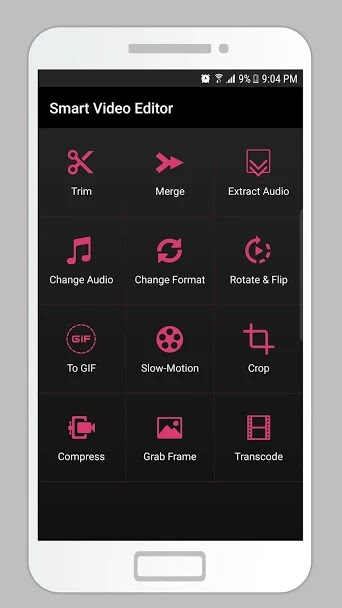
7. Smart Video Editor


This app has many features you can compress your videos as well as edit too it has 12 tools which help you to edit your video easily. you can also create Gifs using this app.

Hey, guys! I hope you all doing well if you like this article then please don't forget to follow my blog and share with your friends if you will leave a comment it will make my day.

الأحد، 30 يونيو 2019

5 best Video Editing App For Android | Latest 2020 [Updated]

5 best Video Editing App For Android | Latest 2020 [Updated]

Video Editing App For Android: Being a YouTuber or a content creator video editing app is the most important thing. when we create a video it contains some unwanted part and we want to add text, color corrections so on, in that case, video editing app really helps us to edit videos in proper ways. there is lots of software available for the computer. but the problem is we can not take laptop everywhere so there are soo many apps are available for Android by which we can edit out a video like a pro just using our smartphone. so today I have collected 5 Best video editing apps for Android. So without any further due let's get into the article.


5 best Video Editing App For Android


KineMaster is one of the best video editing app for android you can edit videos like a pro it has soo many features like adding multiple videos, text, images and all the most amazing feature which I like is the chroma key. yes!!! you can easily remove video background using this app it comes with a free and premium version to use the chroma key you have to buy the premium version.

PowerDirector is a very advanced editing app for android the interface of this app is similar to computer software. it has soo many transition effects and chroma key. this app provides a chroma key feature to remove background from videos. even you can export videos in 4K, it comes with a watermark to avoid watermark you will need to buy the full version.

3. FilmoraGo

5 best Video Editing App For Android | Latest 2019

If you get confused to see soo many features or tool in video editing app then FilmoraGo is the best app for you it is very simple and easy to use features the interface of this app is amazing you can do so many things like trimming, cropping, transition effects, and all these things.

4. Adobe Premiere Clip

5 best Video Editing App For Android | Latest 2019

Adobe Premiere Clip is a great option to edit simple videos it has a very good feature which is automatic video creation it will automatically edit the videos that you have selected. it also basic features like trimming videos, cropping, transition, photo motion. it is totally free.

5. Quik

5 best Video Editing App For Android | Latest 2019

Quick is very easy to use you can create or edit any video in just a tap. it has a very good feature which is automatic video maker, just select the photo or video and soundtrack it will automatically create your video. transition automatically synced with the soundtrack. it has a more than 20+ theme. you can export videos upto FHD in 60fps which is very good. and it is totally free.

Yo guys!!! that were the best video editing apps for android in my opinion. which one you like the most please let me know in the comment section and forget to follow and share this blog.

الأربعاء، 26 يونيو 2019

11 Secret Whatsapp Tricks That Are Not Commonly Known [Updated 2020]

Whatsapp Tricks: Nowadays Whatsapp is used by almost every single person. it is a very famous instant messaging application that allows us to send a message, videos, and other documents very easily and we can also call from one country to another free wheater it is audio or video call.

There is some cool and hidden whatsapp trick which is not commonly known by the people so today I will show you the best-hidden whatsapp trick. so without ant further due let's get into this article.

Secret Whatsapp Tricks That Are Not Commonly Known


11 Secret Whatsapp Tricks


1. Send your Live location

This feature is very cool if you are meeting any person for that first time and he is not able to reach you then you can simply send your live location to him. it will send your real-time location to that person and he can reach you very easily.

Goto Chat>>click on the paper clip icon >>click on the location>>send

2. Save your mobile data


As we know whatsapp automatically downloads all videos and photos when we turn off the data it really consumes our data it also downloads the photos or videos which we dont want so to avoid this you can simply turn off the automatic feature just follow the steps.

Go to settings>>Data and storage usages>>when using mobile data>> disable all the option and that's it now photos and videos will not download automatically until you download it.

3.Download someones whatsapp status

if you guys like someone whatsapp status and you want that but you dont want to ask to send status so in that case, you can easily download someone's whatsapp status for free. I have written a full article about it just check out.

Download Someone's Whatsapp Status

4. Hide last seen

you can simply hide your last seen on WhatsApp if you dont want to see anyone your last seen then simply you can disable this after disabling the last seen no one can see your last seen.

Go to settings>>accounts>>privacy>>last seen>>nbody


5. Send a message to everyone in one click


if you want to want to send one message to two or more people at once then you can simply make the broadcast. it is a very cool feature of its kind f work as a group. if you are creating a broadcast of four people then you can simply send msg to four of them in click,  they will receive msgs like normal. only you can see who has seen your messages. they cannot see who else is in the broadcast.

Open Whatsapp>>click on the three dotted>>New broadcast>>select the contacts>>click ok

6. Change Fonts

you can simply change fonts in whatsapp by some special characters. just put these symbols before and after the message use *msg* to write in bold, for italics use _msg_ for the strikethrough use ~ msg ~

7. Search Important messages

sometimes we have the important message and it got lost in whole chat we spent hours of hours to find that important message to fix this problem you can simply mark that manage to find it later.

Long press the chat>>click on the start button>> that's it to find this chat Go to maim whatsapp home page>>click the three dotted>>click on the starred message>> you will see your important messages there.

8. Change wallpaper

if you are bored with whatsapp's standard wallpaper then you can set your custom wallpaper very easily
Go to chat>>clikc on three dotted>>wallpaper>>select your wallpaper 


9. Listen whatsapp audio privately


this is a very cool feature in whatsapp if you are in public and somebody sent an important voice message and you do not want to listen in public then simply play audio place it on your ear like you talk on the phone it will slow down your audio and seems like you are listening to this on a phone call.

10. Disable read receipts

whenever we read the message that tick becomes blue and the sender gets to know that receiver receives the message and read that to avoid that blue tick you can disable read receipts.

Goto settings>>accounts>>privacy>>disable the read receipts


11. Hide someone's chat


if you talk someone and dont want anyone to see whose you talk or you just want to hide their chat its soo easy just follow these steps.

Long press on that chat>>click on the down arrow button>>thats it, your chat will be hidden to unhide that scroll down>>click on archived chat>>long press on chat click on upside arrow.


11 Secret Whatsapp Tricks That Are Not Commonly Known [2019]

yo, guys!!! so these were some cool hidden tricks on whatsapp which is not commonly known by the people. please let me know in the comment section which one trick you like and please dont forget to follow and share my blog.