Thursday, June 17, 2021

How To Take a Break From Facebook 2 Easy Methods

How to take a break from Facebook

We all need “ME TIME”, once in a while.

We all need a break from our social life!

We want to be ourselves for some time!

Don’t feel as if you are running away from the world or you are depressed by all these worldly things. Because as a human, we all need some time off, from these social gatherings, news, and updates from our friends and relatives. Just to relax and bring us back even stronger.

I agree we use social media for relaxing, but nowadays, it's more like pressure to us as “if he can achieve that goal, then why can’t I?” All these questions do stay within the subconscious mind and make you feel tired and wanted to need a break either for a week or two weeks or might be a month.

But trust me, it's completely right and fine. Leaving such a big platform is a little difficult, there could be messages from clients or relatives or anything. But it could all be managed like a piece of cake by just following the below instructions:

Leave a message on your post for everyone “Hey guys! Am just taking a break for a while, from my social life to focus upon me and my real world. Please text or call me if required, I won’t be checking anything here for a while”

Cool! Isn’t it?

The next thing you need to do is either one of the following:

Delete the Facebook app

OR

Deactivate your Facebook account, and activate it again, once you feel like getting back to the platform

How to uninstall the Facebook app from your Android

  1. Go to your Android settings
  2. open your application manager
  3. Tap Facebook
  4. Tap Uninstall

How to deactivate your account

  1. Click on Facebook in the top right corner.
  2. Select Settings & Privacy, then click Settings
  3. Click Your Facebook information in the left panel.
  4. Tap Deactivate and Delete.
  5. Select Deactivate Account. Next, click on Continue to deactivate the account and follow the instructions to confirm.

Final thoughts

While on break, sit on your terrace, grab a cup of coffee, or we could say have a walk to a park and think patiently about how you to use your Facebook time in a much better way, enhance your skills, boost your productivity and relax your mind. A break from Facebook will positively change your life, with an increased sense of satisfaction and a positive mindset.

Written By- SRISHTI AGGARWAL

Wednesday, June 16, 2021

10 Best Free Pushbullet Alternatives for: Android, IOS, Mac and PC

10 Best free pushbullet alternatives for: Android, IOS, Mac and PC

Do you want to use pushbullet for free? Unfortunately, you can't do it, But you can use some of the best free pushbullet alternatives which provide all features of pushbullet that you get in Paid Version. Even most of them are better.

Below is the list of best alternatives, you can choose according to your ease.

10 Best free pushbullet alternatives


Content:↴
  1. MightyText
  2. AirDroid (Best for android in the List)
  3. Crono
  4. Your Phone
  5. Snap Drop Best for sharing files ( IOS, Mac)
  6. Yappy
  7. Pushline
  8. KDE Connect pushbullet alternative for Linux
  9. EasyJoin

1. AirDroid 

It allows you to make calls, Transfering files, check notifications, replies messages, and Call Logs. But the unique feature is a mirror screen through which you can share the screen of your mobile screen.

It is the best pushbullet alternative for iOS, also available on multiple platforms.

Availability – Andriod, Windows, IOS, Mac

2. Mighty Text

It is one of the best push bullet alternatives for android, through which you can do all the tasks from your PC to a smartphone-like SMS, Making phone and Video calls, uninstalling the app, displaying all phone notifications, scheduling messages, and much more.

Pro Version is also available, but their free version is enough. You can send 500 text messages a month.

If you are an android and Windows user and searching for an alternative, then you should definitely use it.

3. Crono

This one is the best pushbullet alternative for android, If you are only looking for a Notification mirror, then Crono provides a better experience even better than Mighty Text. 

You can get all the notifications from your smartphone to your PC with a better dashboard Experience.

It is specially built for a Notification mirror you can reply to WhatsApp messages, Instagram, and all SMS Systems and the best thing about it is you can share the clipboard of your Phone with your Computer.

You will get 24,00 notifications with their FREE Plan and Push bullet, providing 100 notifications only so that Crono will be a good replacement for Push bullet.

Availability– Android, Linux, and Mac

4. Your Phone

It is the brand new software for Windows built by Microsoft through which you can control messages, Microsoft edge, skype and view gallery photos. Just install the software on windows and Mobile.

Availability – Windows

5. Snap Drop 

If you want to share big files easily and fast, you can try snap drop, No need to install any app. Just create an account. Connect both Pc and Mobile with the same wifi network, Open Snap drop, and start sharing files.

You can share multiple files in one go quickly and fast if you are looking for a file-sharing app, so It is the best on the List.

Availability – Chrome, Windows, Firefox, IOS, Linux

6. Yappy 

It is also a good alternative to pushbullet, which allows you to send messages, Pick up calls. Yappy is best for their notification, but there is no limit like Crono you can send unlimited messages from your Computer. Use it if you get too many messages and notifications.

7. Pushline

Pushline works similarly to pushbullet. You can pick up calls, send messages, and more. Just install an app on the phone and download the extension on Pc and start mirroring your work.

Send me anywhere. It allows You to send messages, but you can share heavy and multiple files from your smartphone to your PC.

And It’s an excellent Pushbullet alternative for IOS because it is available on every platform like Andriod, IOS, Mac, and Windows

8. KDE Connect

Push bullet is not completable for Linux, which is bad news for Linux users, but KDE Connect It’s the best Free alternative to pushbullet for Linux.

You can easily connect with youPhonene and do multiple tasks like sharing files, accessing notifications, see phone calls, reply messages and media playback, etc.

KDE Connect is a very Powerful app for Linux. You should need to try it

Availability – Linux

9. EasyJoin

If app design does not matter for you, you need to try. It provides more features than PushBullet like reply messages, marks read and snooze, voice calls, transfers files, setting alarms, and clipboard.

And some more features for totally free. Some apps will not provide it even in their paid plan. You will get all these features for free.

Availability – Android, window, mac, and Linux

10. Bridge 

It is different from all the Lists you can't share files, or pick calls from it. It has a Notification portal if you have multiple devices then you can connect all of them.

It will store notifications of all devices and you can respond to them also.

Some Popular Questions asked by People


1. Is there any Better app than Pushbullet?

Yes, Airdroid is a better option than Pushbullet, It allows you to make calls, Transfer files, check notifications, replies messages, and Call Logs. But the unique feature is a mirror screen through which you can share the screen of your mobile screen.

2. Pushbullet alternative for ios

You can try Airdroid It’s the best option for ios. It provides features like Calls, Replies Messages, File Transfer, and more for FREE

3. Is Pushbullet free?

No, it only provides some limited features in the Free plan then you need to upgrade it for Five Dollars per month.

4. Does pushbullet work with iPhone

Yes It also works on iPhone and iPad which can easily do all tasks

5. Pushbullet alternative for pc

Your Phone is newly developed by Microsoft only for pc which you can easily connect with Microsoft account

Final Thoughts

These are the best alternatives of pushbllet that you should try at once, And if you know any other best alternative of it then please let us know in the comment section we will definitely add it later.

Monday, June 14, 2021

How To Know if Someone Unadded or Blocked You On Snapchat!

How to Know if someone Blocked you on Snapchat

If you are using Snapchat and one day you see that you are not able to send a message to your friend. If yes, then the chances are they have blocked or unadded you on Snapchat. 

You will not receive any message or notification from Snapchat, So there is a way to find out if someone blocked you on Snapchat or not.


How to Know if someone Blocked you on Snapchat


You can follow these ways for converting doubt into faith

Send them an image; if it's show grey, then you are deleted 

  1. Send a Snap
  2. Check Snapchat score 
  3. Find in your Friends List 

1. Send a Snap

First, take a Snap and share it with that friend, and then see if the red line showing on the left side of the image, means the image is sent, but if you see a message in grey color that says (your snaps and chats are pending until "user" adds you as a friend), that means your message is not sent, that user friend has deleted you from Snapchat

* Before Unfriend

How to Know if someone Blocked you on Snapchat
* After Unfriend 

How to Know if someone Blocked you on Snapchat

2. Find in your Friends List 

You can also know by finding them in your friends' list if you send him/her a message, then it's obvious that [s]he is in your friend list. Go to the Search box and search your friend's name. If it's not popping out, then you are unfriended from Snapchat.

* Before Deleted 

How to Know if someone Blocked you on Snapchat

* After deleted 

How to Know if someone Blocked you on Snapchat


3. Check Snapchat Score 

You can check the snap score if someone has removed you as a friend. Go to a friend's Profile, and just below their name, you can see a snap score that tells you how many snaps you have received.

How to Know if someone Blocked you on Snapchat

If you cannot see it, then it's a direct sign that you are unfriended from Snapchat. 

Last Words 

If all ways are working, your doubt is right that your friend has deleted you from Snapchat. So just a goodby to that friend. 


F&Q


1. what's the difference between unfriend and block on Snapchat

You will not be able to send messages only if the person unfriends you from Snapchat, and you can't see public posts or stories if you are blocked. That's the main difference between unfriend and block. 

2. should I remove friend or block on Snapchat

If you don't want a message and they can see your Public Post, then Remove it or if you want to remove it from everywhere, then Block them.

3. how to remove and block someone on Snapchat

  1. Go to Snapchat and open a friend list
  2. Search which friend you want to block or delete
  3. Hold their Profile, and a popup will come
  4. Select block or remove a friend 

4. how to stop someone from seeing your Snapchat story without blocking them

-> Open Snapchat and click on your Profile

How to Know if someone Blocked you on Snapchat

-> Select setting Icon and scroll to who can view my Story

How to Know if someone Blocked you on Snapchat
-> Click customs
How to Know if someone Blocked you on Snapchat

-> Select people and remove them from seeing your Story 

How to Know if someone Blocked you on Snapchat

5. How to know if someone deleted you from your Snapchat story?

Make a Fake account, and then check your friend's story. If it is seeing on a fake account but not in your account, that means your friend blocked you from the Snapchat story. 

Final Thoughts

So these are the easy three ways to know if someone unfriended you on Snapchat or not, If you have any problem regarding this article then please let us know in the comment section, we will try to help you as soon as possible.

You Might Like These:↴

Wednesday, June 9, 2021

How to Remove Ads on Hulu & Hulu Live TV - Enjoy without seeing ads

How to remove ads on Hulu on Live TV

No one loves watching the ads while watching his or her favorite series online. The popularity of streaming is because of the full control it has provided to its users on the go.

Of course, we hate ads during the live streaming, But today we'll show you, How to remove Ads on Hulu on Live TV? What is Hulu's non-commercial plan?

Read Also: Best Equalizer For Windows 10

I know it's annoying.

But, don’t worry, we are here to provide you with a solution to your problem. A way to watch Hulu with no commercial.

Hulu has relied upon ads just to provide its users the low-cost services, unlike Netflix and amazon they are ad-free but with a high subscription cost. Therefore, Hulu decided something different to provide the same series cost-effectively, it only requires a few extra clicks, to go ad-free.


How To Remove Ads On Hulu


The easiest way to remove ads is to upgrade them to the premium plan. Hulu comes with the following two plans:

Standard subscription, which cost $5.99 per month

Premium subscription, stands for $11.99 per month

Steps to upgrade the plan is :

  1. Login into your account
  2. Click on manage your account

Here you can upgrade your subscription and can add any add-ons if you want OR even can cancel your Hulu account.


How to remove ads from Hulu’s live TV with no commercials


Hulu’s live Tv is just one of the easiest ways out to quit cable from your house. That too just for $64.99/month. And if you pay $70.99 per month, there you go with ads-free and live TV in just one single plan.

You can switch to live cable, then to streaming just like a breeze, and that too without any commercials or ads.

But yes the commercials that run in between the live cable, while watching ESPN, HBO, or any other live TV channel, I regret to say that you can’t skip that. Hulu’s live TV will play exactly what is playing on any particular channel at that particular moment.

Final Thoughts

This is the only way out to skip the commercials on Hulu's live stream till now, I hope you liked it. If there is any other way you are aware of skipping commercials on the Hulu stream, let us know in the comment below and we'll come back with in-detailed information on the same. Just for you guys!

Author- Srishti Aggarwal

Monday, June 7, 2021

6 Best Equalizer For Windows 10 To Get Better sound Experience!

6 Best Equalizer For Windows 10 To Get Better sound Experience

Do you love listening to music?

Of course, yes! Who doesn’t, everyone does love listening to music.

But have you ever thought to adjust the audio frequencies according to the occasion or environment in which you are listening to the music?

Sometimes, we want loud music with high bass and sometimes soothing music to relax our minds.

Read Also: Best File Manager For Windows 10

Windows 10 in-built recorder doesn’t provide all these features for the users, it is quite good but with fewer features and options for the user. So today here we come up with the list of the best equalizer for your windows 10, that would help you to manage the frequencies of music you are listening to:


6 best Equalizers for windows 10 (62 bit and 32 bit)


1. Equalizer APO

6 Best Equalizer For Windows 10 To Get Better sound Experience

It’s a free feature-rich equalizer available for the users, I agree that this Equalizer lacks in the graphic user interface(GUI), But guys, this is the best equalizer with full-featured support for the music fans out there. It is very lightweight and supports:

Unlimited number of filters, multi-channel use, and support for 3D surround sound

2. Boom 3D

If you are a headphone user, then you must go with this software, as it is specially designed for those who listen to the audio from their computer using the headphones. This software will convert all the audio output to the 3D sound, on the go, without the use of any additional requirement for hardware or boosters.

3. FxSound

Fxsound is a two in one tool with an amazing interface. The tools it offers are an equalizer and real-time audio processing feature.

An equalizer allows the user to customize sliders for fidelity, surround sound, dynamic boost, and bass sound. Additionally, it offers the preset profile too.

Whereas the real-time audio processing feature is used when you are listening to any live stream video over the internet, for live stream audio this software will automatically adjust the ambiance, fidelity, and surround sound for you, without you putting any effort.

4. VoiceMeeter banana

A donationware software with an interactive interface, allows the user to pay as much he or she like or they don’t have to pay if they don’t want to. It’s the best for microphone user’s because it covers the loopholes to provide distortion-free and crispy sounds. It also allows the user to alter the speed of their speech as well as allows the user to alter the pitch of their voice.

5. Viper4windows

It is open-source software for windows vista, 7, 8.1, and 10. It has a quite basic interface with more than 18 bands, which you cant ever expect in any consumer-level equalizers available over the internet. It also allows you to create your profile or you can either use them from any preset profile available within the software.

The features are not limited to this, it goes more on the list as follows:

It allows you to set the room size in which you are listening to music and it will automatically adjust the frequencies for you according to the room size you entered.

Bass boost, reverberation settings, and Distortion control, and some other controls are available within the software for the users to enjoy the music on the full beat.

6. Equalizer Pro

It’s last on the list but it is more popular than Equalizer APO and has a far better interface as compared to equalizer APO. It offers a 10 band equalizer, which is the highest number among any other software, available here on the list and it also provides more than 30 professional music equipment.

It also allows users to save their own customize equalizer profile for later use.

The only con we have is that it is a paid version and only offers seven days free trial.

Final Thoughts

Hope you guys liked our list of available equalizers, comment down below, which one is your favorite among the above or any other if you are using. Waiting for your response.


Sunday, June 6, 2021

Top 10 Best File Managers For Windows 11 [Top Picks]

10 Best File Managers For Windows 10 In 2021

Have you gotten bored using the same file manager interface within your windows for the last several years? Microsoft has hardly changed the interface of the inbuilt file explorer. Additionally, the number of features provided by Microsoft is far lesser than the other file explorer available over the internet.

If you, too, are interested in changing the view of your desktop file explorer, then BOOM! You have landed on the right page. Here are the best file managers for windows 10 available for you to change the interface.

Also Read: Create A Restore Point In Windows 10

10 best File Manager for windows 10

  1. Directory Opus
  2. WinDirStat
  3. Q-Dir
  4. One- commander
  5. Free commander
  6. Fluent file explorer

1. Directory Opus

10 Best File Managers For Windows 10 In 2021

It's an old-time file manager with an intuitive UI that offers you to select the single pane and double pane view as per your choice. The most eye-catching feature the Directory opus has us to provide is to switch between the directories through the tabs. The features are not limited to this. It also provides options to add tags, descriptions, set colours, and rating to your files and directories and thus making It easier to use and find any file we want.

2. WinDirStat

10 Best File Managers For Windows 10 In 2021

It is an open-source file explorer software available for windows 10. It allows the user to view the statistics of space, which every file is consuming over the disk. It thoroughly analyses your drive and directory and then displays all the files labelled with different colours. Colours are assigned according to the amount of space a particular file consumed over the hard disk. For example, the file with maximum size would be labelled as blue.

3. Q-Dir

10 Best File Managers For Windows 10 In 2021

As the name suggests, Q-Dir, where the Q stands for the "Quad". This file manager allows the user to work on 4 panes simultaneously, whereas the other file explorer only offers a maximum of 2 different panes to work upon. While when we talk about the interface, it is pretty similar to that of windows explorer, but the 4 panes at one time are a great option which most of us want to explore.

4. One- commander


10 Best File Managers For Windows 10 In 2021

It's a great FREE alternative to windows 10 file explorer and is popularly known for its advance and interactive interface, which comes with two different themes, i.e. dark and light. Additionally, it doesn't display any ads.

Its address bar displays all the subfolders in the existing directory, and its right pane shows the history panel of the last accessed files, making it easier for the user to navigate between different files and folders.

5. Free commander

10 Best File Managers For Windows 10 In 2021

The free commander is the best and free file manager app that you can use on windows 10. It has a bunch of features to offer the user, and it is extremely lightweight. The features include split and combine files, zip and unzip the files, shred the files, batch the files, and many more, and that too all within one single software.

6. Fluent file explorer


10 Best File Managers For Windows 10 In 2021

It's an excellent pick for you as an alternative to windows default file explorer. The dark theme is mesmerizing. For this app, you don't have to wander on other sites to download it. It is available right there in the Microsoft store. It is a must-try app for all the users out there, with all the options available within one single app.

7. XYplorer

10 Best File Managers For Windows 10 In 2021

Another great dual-pane interface explorer is here on the list for windows 10. It supports tab configuration and remembers the settings that we once set for another time. It makes it easy to navigate between folders, which displays in a tree structure on the left-hand side.

8. ExplorerMax

10 Best File Managers For Windows 10 In 2021

It’s free software available for users with tab functionality and offers two different colour modes, light and dark. Primarily famous for its tab functionality feature.

9. FileVoyager

10 Best File Managers For Windows 10 In 2021

A portable version of file explorer with dual pane functionality offers you access to default windows folders such as documents, downloads etc. It also displays the size of the file next to its name and allows the user to edit file or folder details in a notepad.

10. fman

Its software is available for all 3 versions of Windows: Mac, Windows, and Linux. It is especially recommended for software developers and tech-savvy persons as it helps to move the files and folders quickly within the platform provided.

Final Thoughts

So these are the best file explorer available on the internet, there are many more, but we have recommended only the popular ones. Find the best one for you to help you manage your files efficiently and beautifully in no time. I hope it might help. If you know any other best alternative, do share with us in the comment below.

Saturday, June 5, 2021

6 best Adobe Flash Player alternatives- To be run on any browser

6 best Adobe Flash Player alternatives

Are you aware that Adobe flash player has discontinued its services since 2021

Shocked?

Yes, we all are in the same state of mind as Adobe flash player is the most used software in the computer systems for the last several years and supported various apps, games, and live streaming in all browsers available over the internet world.

Since the adobe flash player has discontinued its services, here we come up with the best alternatives for all of you. Like many vendors, businesses and users must be looking for the best alternative for the adobe flash player that they might get on the Internet.

Also Read: Best Chrome Extensions For Productivity

But don’t worry. We are here to guide you and swim you out through all the oceans of questions you are carrying within your mind. So, the following are the alternatives that users can use within any browser to run the services that might need adobe flash player support.

Content:

  1. BlueMaxima Flashpoint secure Player
  2. Photon Flash Player
  3. Supernova
  4. FlashFox (Flash-based Web Browser- Android)
  5. Ruffle
  6. Lightspark

6 Alternatives To Adobe Flash Player


1. BlueMaxima Flashpoint secure Player

It started as a little project and now capturing all the market for the apps, games, and streaming that need the support of flash players. BlueMaxima is one of the best alternatives available in the market for Adobe Flash Player since 2018. Also, lighter in size than any player available at the moment. Serving 2 different versions:

  • Flashpoint infinity
  • Flashpoint Ultimate

2. Photon Flash Player (Best Altrantive for Andriod)

Its and flash player enabled android web browser available over the web, to facilitate the user to use the functionality of flash player without installing and downloading any additional plugin, install the browser and surf any site you want on the go, all the flash-based content will be displayed without installing any other plugin or software.

3. Supernova

A software that offers both the plugin as well as software for your system. 

The plugin can be downloaded from the google chrome store and be added to any browser you want, but it would only limit its functionality to that particular browser.

But guess what?

The supernova is offering software too, which is available on the supernova site, can be downloaded onto your systems, and all the browsers from your system could access the functionality of the software.

4. FlashFox (Flash-based Web Browser- Android)

Here’s another flash-based android web browser into a list. It is pretty similar to the photon flash player. As the functionality of a flash player can be accessed on all the browser sites, there is no need to download or install any plugin or software. But in spite of all these features, it offers some mind-blowing browsing features: Sync tabs, recent tabs, history bookmarks, and many more.

Please go and check them all by yourself.

5. Ruffle

It is an open-source emulator available on the Internet. This plugin works similarly to our regular flash player and serves all the purposes of the user’s just as the flash player. Similar to flash player, it also needs to be downloaded as a plugin onto your PC to access its characteristics.

6. Lightspark

The program written in C, C++ language and is an open-source code for all the users. The code is available on GitHub. Additionally, it supports Linux systems. It a win-win situation for the Linux users, as this software has been specially designed to support their platform.

Final Thoughts


These are the best alternatives available for now. If you come across any more options, comment them down. We would come up with more information on the same.

Friday, June 4, 2021

How to Create A Restore Point In Windows 10 [Easy Methods]

How to Create A Restore Point In Windows 10

If you wanna do some changes to your pc, And you are afraid of getting your pc into critical problems, Then the system restore point is the best tool for you that comes inbuilt in windows 10, It simply creates a restore point of a current working sate of your pc so if something goes wrong with your pc you can easily revert it to normal. 

This tool is very useful, for example, you updated your Windows 10 and didn't really like some of the features or it has some bugs, then you can revert the update with this tool.

It can also automatically create a restore point, but in some of the Windows 10 machines, the Automatic restore point is disabled, So today I'll show you how you can easily create a restore point in windows 10.

Contents:

-> How to enable automatic restore point

-> How to create a restore point manually

-> How to recover from the restore point

How To Enable Automatic Restore Point

In most of the windows 10 machines, it comes enabled, in case it is disabled or you wanna check whether it is enabled or not then you can follow these easy steps.

1- Go To start
2- Type "create restore point" and hit enter

How to Create A Restore Point In Windows 10

3- Now choose your C drive and click on the "configure"

How to Create A Restore Point In Windows 10

4- Click on the "Turn on System Protection"  (If it is already enabled then leave it as it is)

How to Create A Restore Point In Windows 10

5- Click Apply and Ok

Now if you will make any changes to your computer then this tool will automatically create a restore point. in case you wanna revert the changes.

How to create a restore point manually

If you wanna create a restore point manually then follow these steps:

1- Go To Start Menu
2- Search "create a restore point" and hit enter

How to Create A Restore Point In Windows 10

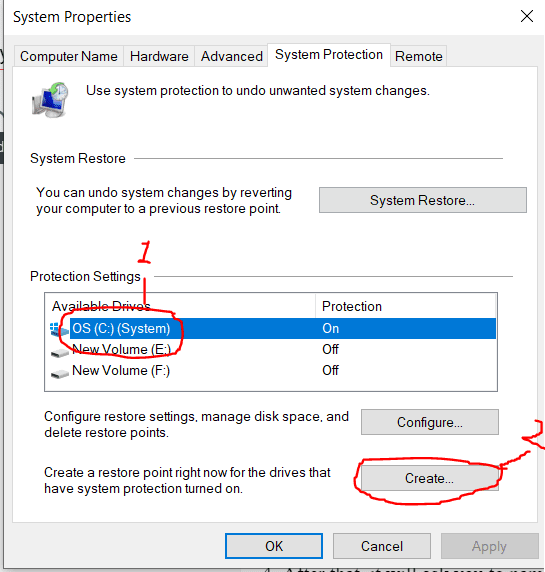
3- Choose the drive C and click on the Create

How to Create A Restore Point In Windows 10

4- After that, it will ask you to name it So that you can easily identify and Click on Create

How to Create A Restore Point In Windows 10

5- It will take a little bit of time and that's it, Now your restore point will be created

How to Create A Restore Point In Windows 10

Now you can do whatever changes you want in your computer without any fear of getting into a problem. 

How to recover from the restore point

Finally, you have successfully created your restore point. But what if you get into trouble how will you revert it? 

So now you will learn how to easily recover from a restore point

1- Again Go To the start menu
2- Type "Create a restore point" and hit enter

How to Create A Restore Point In Windows 10

3- Click on "System restore"

How to Create A Restore Point In Windows 10

4- Click on "Choose the different restore point" and click next

How to Create A Restore Point In Windows 10

5- Choose the desired restore point and click Next

How to Create A Restore Point In Windows 10

6- Now choose the drive C and click on the finish.

How to Create A Restore Point In Windows 10

Now your system will back to its normal state from where you have created your restore point.

Final Thought

Restore point is one of the most useful features for us as a windows user, that gives us chance to revert any mistakes. If you have any doubt regarding the process then let me know in the comment section I'll try to help you out as soon as possible.

Thursday, June 3, 2021

15 The Best Chrome Extensions For Better Productivity!

15 Best Chrome Extensions For Productivity

Do you often get distracted while working on browsers? As a result, many people lose their willpower and spend a lot of time seeing useless things.

But we have a solution for you


We have collected 15 best chrome extensions for productivity, Which will help you in a better way, these extensions will help you to stay focused on work.


Read Also: Disable Pop-up Blocker In Any Browser


15 Best Chrome Extension for Productivity 


  1. Momentum
  2. Grammarly  
  3. Ad Block 
  4. Rescue Time
  5. StayFocusd
  6. Diigo
  7. One Tab
  8. Productivity Tracker 
  9. Notepad by ClickUp
  10. News Feed Eradicator For Facebook Need
  11. Noisli
  12. Todoist 
  13. Toggl
  14. Just Read
  15. Toggle
  16. Hunter.io


1. Momentum 


Starting a Good Morning is very important because It makes your all-day Productive. Web Page is the first place where most of us begin work.


Instead of Boring Image momentum display Inspiring nature image you will also see Local time, Good Morning and Motivational Quote in the bottom. 

You can also add a worklist that you need to do today and remind you every time you open a new tab. 


2. Grammarly 


We often make mistakes while writing content, email message, and It looks a bit unprofessional. 


But Grammarly analyzes the content and gives auto-suggestions, which you can fix with just one click for FREE. 


It also gives suggestions on Voice tone, passage, and Font, making your content more professional. It is the all-in-one tool that every communicator needs to use.


3. Ad Block


Every time we face annoying ads that try to sell products only and waste time, but no more

Ad Block is the Extension that blocks all the annoying ads on the web, Facebook, and Youtube and makes your morning super productive.


4. Rescue Time - Save Your Time


If you want to track your time spent, it's not an easy task, so you need a tool that works on the backend and tracks your all-time spending. You should need to try Rescue Time.


Resume Time work in the backend and track your time spent on each website and auto add in a category. 


You can also add Goals and get a productivity score for it.


5. StayFocusd


If you don't have strong willpower and distract from work to Facebook, Youtube, this Extension is only made for you. 


You can set a time slot that You can only 10 min on youtube, 5 min on Facebook. When you visit any site, it automatically calculates your set time and blocks the site after completing time.

Which remend your time spend and Boost your Productivity 


6. Diigo


Diigo allows you to bookmark and save a screenshot on the web and can mark anything. 


And when you revisit the site, it starts highlighting with a sticky box where you add it. You can use the outliner feature for finding and arranging topics for your content research.


7. One Tab 


We often open too many tabs, and it looks stuffy, but one Tab keeps all Tab in one Tab, which looks easy and understandable.


It adds all tabs on one page and opens with just one click on it, making your task easier.


8. Productivity Tracker 


It tracks all your productivity according to the number of clicks and keystroke on the web and shows in graph form. 

If you spend too much time seeing videos, then you will see low-keystroke in Productivity Tracker.


9. Notepad by ClickUp


If you want a quick and helpful notepad while using chrome, you can go with Notepad by ClickUp. It's a free extension. Which can use without opening a new tab and do your work easily 


Get a Free chrome extension along with these features 


  • Make Multiple Notes
  • Add photo videos
  • Add tasks reminders 


10. News Feed Eradicator for Facebook Need 


If you use Facebook for work purposes and get trap in Facebook news, just scrolling for hours?


News Feed Eradicator will replace all post with motivational quotes which boost your work attention. But you can access your Profile, Post something, attend live meetings.


It would be best if you tried it. 


11. Noisli


It is the best music extension that can boost your productivity by playing some relaxing music like wind, rain, and relaxing music.


12. Todoist 


It converts Web page URL into a task. Suppose you are reading an article and want to save it so you can try todoist. You can save the web URL as a Task.


If you are reading recipes, you can add these web URLs and add a task to read easily whenever you want. 


13. Toggl


It is the best supporter of Todoist, which tracks the time you spend on a task. It will connect with Todoist.


The toggl will display all the tasks of the Toggle and where you can set starting and ending time reminders. If you are using Todoist, then you should use the combination of these extensions. 


14. Just Read - Read without any distraction 


Many websites have too many elements like Ads, Images, Popups which mostly distract from a reading article. But this Extension removes all elements instead of text to read the full article without any distraction. 


15. Hunter.io- Find Email from any web page


If you are finding Emails from the website manually for any work, you should try this Extension, which can discover unlimited emails from a website with just a single click. 


It's free, and many tools charge thousands of dollars for it. 


Final Thought


So these were some of the best chrome extensions for productivity that you must have If you mostly work on the computer. you can use it while working on Chrome and work without Distraction.


Don't forget to drop your favorite extension and what's your experience with it.